Iced Code Editor
A high-performance, canvas-based code editor widget for Iced (opens in new tab).
 (opens in new tab)
 (opens in new tab)
 (opens in new tab)
 (opens in new tab)
 (opens in new tab)
Overview
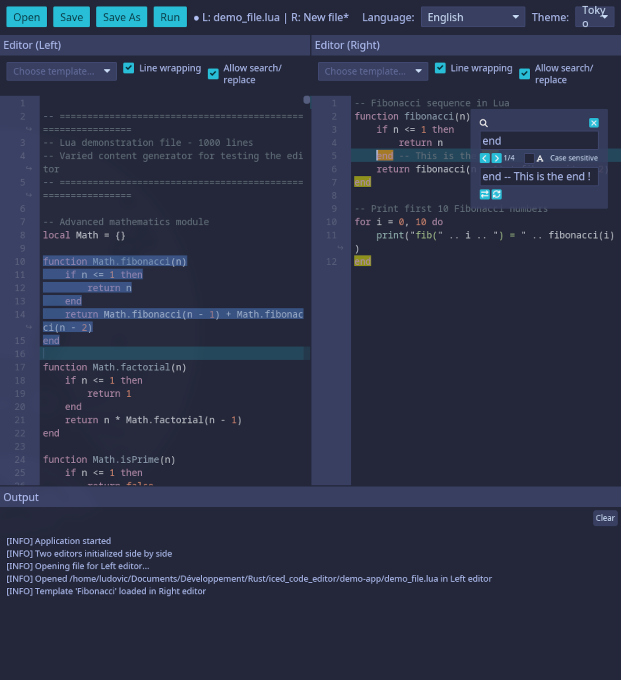
This crate provides a fully-featured code editor widget with syntax highlighting, line numbers, text selection, and comprehensive keyboard navigation for the Iced GUI framework.
Screenshot of the demo application:
Features
- Syntax highlighting for multiple programming languages via syntect (opens in new tab)
- Line numbers with styled gutter
- Text selection via mouse drag and keyboard shortcuts
- Clipboard operations (copy, paste)
- Undo/Redo with smart command grouping and configurable history
- Custom scrollbars with themed styling
- Focus management for multiple editors
- Native Iced theme support - Automatically adapts to all 23+ built-in Iced themes
- Line wrapping to split long lines
- High performance canvas-based rendering
- Search and replace text
- Language Server Protocol (LSP) support
Planned features
- [ ] Multiple cursors for simultaneous editing at multiple positions
- [ ] Collapse/expand blocks
- [ ] Indentation-based or syntax-aware
- [ ] Minimap
Quick Start
Add this to your Cargo.toml:
[dependencies]
iced = "0.14"
iced-code-editor = "0.3"
Basic Example
Here's a minimal example to integrate the code editor into your Iced application:
use iced::widget::container;
use iced::{Element, Task};
use iced_code_editor::{CodeEditor, Message as EditorMessage};

struct MyApp {
    editor: CodeEditor,
}

#[derive(Debug, Clone)]
enum Message {
    EditorEvent(EditorMessage),
}

impl Default for MyApp {
    fn default() -> Self {
        let code = r#"fn main() {
    println!("Hello, world!");
}
"#;

        Self { editor: CodeEditor::new(code, "rust") }
    }
}

impl MyApp {
    fn update(&mut self, message: Message) -> Task<Message> {
        match message {
            Message::EditorEvent(event) => {
                self.editor.update(&event).map(Message::EditorEvent)
            }
        }
    }

    fn view(&self) -> Element<'_, Message> {
        container(self.editor.view().map(Message::EditorEvent))
            .padding(20)
            .into()
    }
}

fn main() -> iced::Result {
    iced::run(MyApp::update, MyApp::view)
}
Keyboard Shortcuts
The editor supports a comprehensive set of keyboard shortcuts:
Navigation
| Shortcut | Action | | -------------------------------------- | ----------------------------- | | Arrow Keys (Up, Down, Left, Right) | Move cursor | | Shift + Arrows | Move cursor with selection | | Home / End | Jump to start/end of line | | Shift + Home / Shift + End | Select to start/end of line | | Ctrl + Home / Ctrl + End | Jump to start/end of document | | Page Up / Page Down | Scroll one page up/down |
Editing
| Shortcut | Action | | ------------------ | ------------------------------------------------------------------------ | | Backspace | Delete character before cursor (or delete selection if text is selected) | | Delete | Delete character after cursor (or delete selection if text is selected) | | Shift + Delete | Delete selected text (same as Delete when selection exists) | | Enter | Insert new line | | Tab | Insert 4 spaces (indent) |
Clipboard
| Shortcut | Action | | ---------------------------------- | -------------------- | | Ctrl + C or Ctrl + Insert | Copy selected text | | Ctrl + V or Shift + Insert | Paste from clipboard |
Undo/Redo
| Shortcut | Action | | ------------ | -------------------------- | | Ctrl + Z | Undo last operation | | Ctrl + Y | Redo last undone operation |
The editor features smart command grouping - consecutive typing is grouped into single undo operations, while navigation or deletion actions create separate undo points.
Search and Replace
| Shortcut | Action | | -------------- | ------------------------------ | | Ctrl + F | Open search dialog | | Ctrl + H | Open search and replace dialog | | F3 | Find next match | | Shift + F3 | Find previous match | | Escape | Close search dialog |
LSP Completion
These shortcuts are active only when the LSP completion menu is visible:
| Shortcut | Action | | -------------------------------- | ------------------------------------- | | Arrow Up | Navigate to previous completion item | | Arrow Down | Navigate to next completion item | | Enter | Confirm and apply selected completion | | Escape | Close completion menu | | Arrow Left / Arrow Right | Clear completion menu |
Usage Examples
Changing Themes
The editor uses TokyoNightStorm as the default theme. It automatically adapts to any Iced theme. All 23+ built-in Iced themes are supported:
use iced_code_editor::theme;

// Apply any built-in Iced theme
editor.set_theme(theme::from_iced_theme(&iced::Theme::TokyoNightStorm));
editor.set_theme(theme::from_iced_theme(&iced::Theme::Dracula));
editor.set_theme(theme::from_iced_theme(&iced::Theme::Nord));
editor.set_theme(theme::from_iced_theme(&iced::Theme::CatppuccinMocha));
editor.set_theme(theme::from_iced_theme(&iced::Theme::GruvboxDark));

// Or use any theme from Theme::ALL
for theme in iced::Theme::ALL {
    editor.set_theme(theme::from_iced_theme(theme));
}
Getting and Setting Content
// Get current content
let content = editor.content();

// Check if content has been modified
if editor.is_modified() {
    println!("Editor has unsaved changes");
}

// Mark content as saved (e.g., after saving to file)
editor.mark_saved();
Enable/disable search/replace
The search/replace functionality is enabled by default. It can be toggled on or off. When disabled, search shortcuts (Ctrl+F, Ctrl+H, F3) are ignored and the search dialog is hidden:
// Disable search/replace functionality
editor.set_search_replace_enabled(false);

// Or use builder pattern during initialization
let editor = CodeEditor::new("code", "rs")
    .with_search_replace_enabled(false);

// Check current state
if editor.search_replace_enabled() {
    println!("Search and replace is available");
}
This is useful for read-only editors or when you want to provide your own search interface.
Open search/replace from your own buttons
Besides keyboard shortcuts, you can open or close the dialogs via API:
// Open search dialog (same as Ctrl+F)
let task = editor.open_search_dialog();

// Open search+replace dialog (same as Ctrl+H)
let task = editor.open_search_replace_dialog();

// Close dialog (same as Esc)
let task = editor.close_search_dialog();
Return these tasks from your app update function after mapping to your message type.
Enable/disable line wrapping
Line wrapping is enabled by default at viewport width. Long lines can be wrapped automatically at the viewport width or at a fixed column:
// Enable line wrapping at viewport width
editor.set_wrap_enabled(true);

// Wrap at a fixed column (e.g., 80 characters)
let editor = CodeEditor::new("code", "rs")
    .with_wrap_enabled(true)
    .with_wrap_column(Some(80));

// Disable wrapping
editor.set_wrap_enabled(false);

// Check current state
if editor.wrap_enabled() {
    println!("Line wrapping is active");
}
When enabled, wrapped lines show a continuation indicator (↪) in the line number gutter.
Enable/disable line numbers
Line numbers are displayed by default. They can be hidden to maximize space for code:
// Hide line numbers
editor.set_line_numbers_enabled(false);

// Or use builder pattern during initialization
let editor = CodeEditor::new("code", "rs")
    .with_line_numbers_enabled(false);

// Show line numbers (default behavior)
editor.set_line_numbers_enabled(true);

// Check current state
if editor.line_numbers_enabled() {
    println!("Line numbers are visible");
}
When disabled, the gutter is completely removed (0px width), providing more horizontal space for code display.
Language Server Protocol (LSP)
LSP support provides hover documentation, auto-completion, and go-to-definition. It requires the lsp-process feature (not available on WASM):
[dependencies]
iced-code-editor = { version = "0.3", features = ["lsp-process"] }
Enable/disable LSP on an editor
// Enable LSP (attach a client and open the document)
editor.set_lsp_enabled(true);

// Disable LSP (detach the client)
editor.set_lsp_enabled(false);
Connecting an LSP server
use std::sync::mpsc;
use iced_code_editor::{LspProcessClient, LspEvent, LspDocument};

// Create a channel to receive LSP events
let (tx, rx) = mpsc::channel::<LspEvent>();

// Start the server (e.g., lua-language-server)
let client = LspProcessClient::new_with_server(
    "file:///path/to/project",
    tx,
    "lua-language-server",
)?;

// Attach the client to an editor with a document URI
editor.attach_lsp(
    Box::new(client),
    LspDocument::new("file:///path/to/file.lua", "lua"),
);
Rendering the overlay (hover + completion)
Use LspOverlayState to hold display state and view_lsp_overlay to render it:
use iced_code_editor::{LspOverlayState, LspOverlayMessage, view_lsp_overlay};

struct App {
    editor: CodeEditor,
    overlay: LspOverlayState,
}

#[derive(Clone)]
enum Message {
    LspOverlay(LspOverlayMessage),
    // ...
}

fn view(app: &App) -> Element<'_, Message> {
    // Stack the overlay on top of the editor
    stack![
        app.editor.view().map(Message::EditorEvent),
        view_lsp_overlay(
            &app.overlay,
            &app.editor,
            &app.theme,
            14.0,    // font size
            20.0,    // line height
            Message::LspOverlay,
        ),
    ].into()
}
Poll LspEvents from the channel on each tick and update the overlay state:
// On LspEvent::Hover
overlay.show_hover(text);

// On LspEvent::Completion
overlay.set_completions(items, cursor_position);
Supported servers
Out of the box, the following servers are supported (the binary must be on $PATH):
| Server key | Language |
| ---------------------------- | -------- |
| lua-language-server | Lua |
| rust-analyzer | Rust |
| pylsp | Python |
| clangd | C / C++ |
| typescript-language-server | JS / TS |
Changing font
The default font of the editor is iced::Font::MONOSPACE. It can be changed with one of the default iced font or by loading a specific font:
let font = iced::font::Family::SansSerif;
editor.set_font(font);
The editor support CJK font.
The default font size is 14px. It can be changed:
editor.set_font_size(12.0, true);
Themes
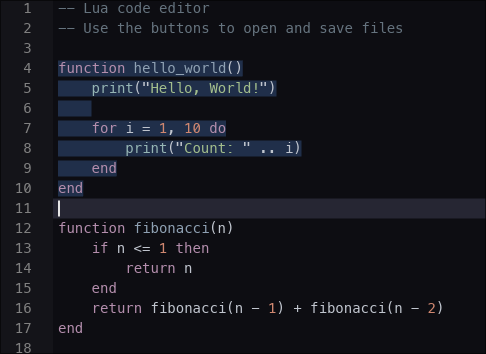
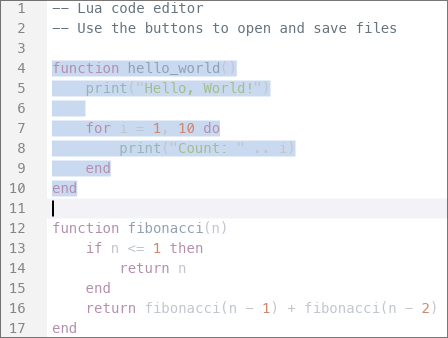
The editor natively supports all built-in Iced themes with automatic color adaptation.
Each theme automatically provides:
- Optimized background and foreground colors
- Adaptive gutter (line numbers) styling
- Appropriate text selection colors
- Themed cursor appearance
- Custom scrollbar styling
- Subtle current line highlighting
The editor intelligently adapts colors from the Iced theme palette for optimal code readability.
Supported Languages
The editor supports syntax highlighting for numerous languages via the syntect crate:
- Rust (
"rs"or"rust") - Python (
"py"or"python") - JavaScript/TypeScript (
"js","javascript","ts","typescript") - Lua (
"lua") - C/C++ (
"c","cpp","c++") - Java (
"java") - Go (
"go") - HTML/CSS (
"html","css") - Markdown (
"md","markdown") - And many more...
For a complete list, refer to the syntect documentation (opens in new tab).
Demo Application
A full-featured demo application is included in the demo-app directory, showcasing:
- File operations (open, save, save as)
- Theme switching
- Modified state tracking
- Clipboard operations
- Full keyboard navigation
Run it with:
cargo run --package demo-app --release
Contributing
Contributions are welcome! Please feel free to submit a Pull Request.
Check docs\DEV.md (opens in new tab) for more details.
License
This project is licensed under the MIT License - see the LICENSE (opens in new tab) file for details.
Acknowledgments
- Built with Iced (opens in new tab) - A cross-platform GUI library for Rust
- Syntax highlighting powered by syntect (opens in new tab)